Have you ever needed to share a place that doesn’t have a clear address, mark a meeting point, or guide someone to a specific entrance? Pinning a location on Google Maps makes all of these tasks much easier.
Instead of searching for an existing business or address, you can manually select a precise point on the map and then share, save, label, or navigate to it.
The process is slightly different depending on whether you’re using an Android phone, iPhone, or desktop computer. This guide explains each method step by step, along with ways to share a pin, mark your current location, find coordinates, and avoid common mistakes.
What Does It Mean to Pin a Location on Google Maps?
When you search for a restaurant, hospital, shop, or address on Google Maps, you’re looking for a location that Google has already identified or listed.
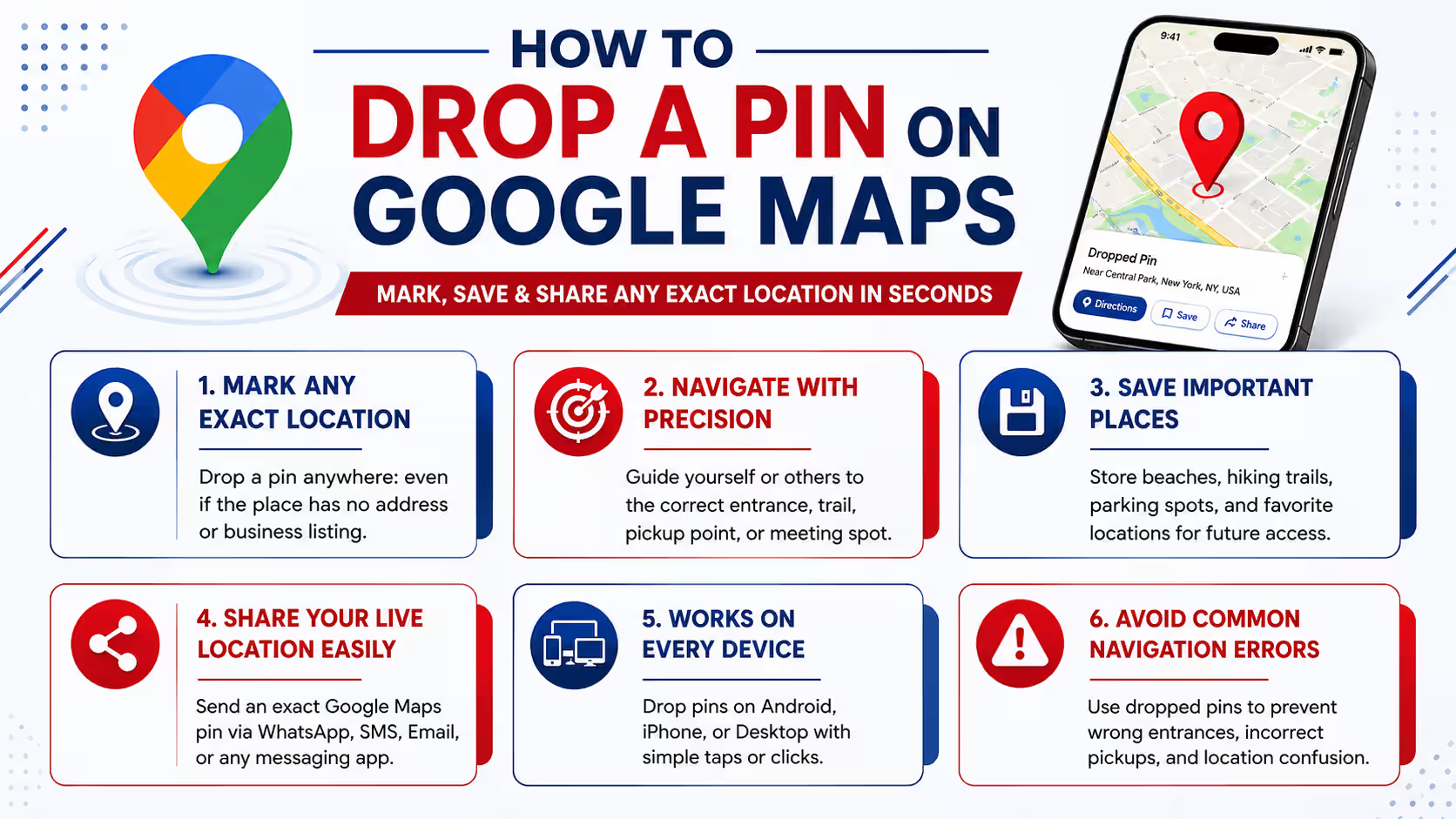
Dropping a pin works differently. You choose a point on the map yourself, even if that exact point doesn’t have a business listing or a clearly defined address.
This can be helpful when you want to:
- Mark a particular entrance instead of the main road
- Share your exact meeting point
- Identify a location in an open or rural area
- Mark a campsite, trail, beach, or parking area
- Guide a delivery driver to a specific spot
- Share a pickup or drop-off point
- Identify a building inside a large property
- Mark a property that doesn’t have a recognizable address
Once you’ve placed the pin, Google Maps can provide available location details and tools for sharing, saving, or getting directions.
How to Drop a Pin on Google Maps on Android
Dropping a pin on an Android phone takes only a few seconds.
Step 1: Open the Google Maps App
Launch the Google Maps app on your Android smartphone.
If you’re trying to mark your current position, make sure location access is enabled for Google Maps.
Step 2: Find the Area You Need
Use the search box to locate a nearby road, landmark, business, or address.
You can also move around the map manually. Use two fingers to zoom in or out until you can clearly see the area where you want to place the pin.
Tip: Zooming in before selecting the location can help you choose a more precise point.
Step 3: Touch and Hold the Map
Once you’ve found the right spot, press and hold your finger on that point.
A location marker will appear.
If you accidentally select an existing business or landmark, move slightly away from it and try again on the map.
Step 4: Check the Location Card
Google Maps will display information about the selected point.
Depending on the location, you may find:
- Approximate address
- Latitude and longitude
- Directions
- Share
- Save
- Add label
- Nearby places
Review the location before taking any further action.
Step 5: Share, Save, or Navigate
You can now choose what you want to do with the pin.
Directions: Get a route to or from the selected location.
Share: Send the location to another person.
Save: Add the point to a Google Maps list.
Label: Give the location a name that makes it easier to identify later.
How to Drop a Pin on Google Maps on iPhone
The basic process on an iPhone is similar, although the interface may look slightly different.
Step 1: Open Google Maps
Launch the Google Maps app on your iPhone.
You don’t need to use Apple Maps for this process; make sure you’re working inside the Google Maps application.
Step 2: Navigate to the Desired Area
Search for an address, landmark, or nearby place to get close to your target.
You can also move the map manually and zoom in until you can identify the exact point you want.
Step 3: Press and Hold the Location
Place your finger on the desired point and touch and hold the screen.
After a moment, Google Maps will place a pin at that location.
Step 4: Review the Information
A location card will appear at the bottom of the screen.
Depending on the selected point, it can show available address information, coordinates, and other location-related options.
Step 5: Choose an Action
You can now:
- Tap Directions to plan a route
- Tap Share to send the location
- Tap Save to keep it in a list
- Use available labeling options to identify the location
Step 6: Correct the Pin if Necessary
If the marker isn’t exactly where you intended, close the location and select the correct point again.
For better precision, zoom in closely before placing the pin.
iPhone Tip
If Google Maps opens an existing business or place instead of creating a dropped pin, you’re probably selecting an existing map listing. Zoom further into the area and select an unmarked point nearby.
How to Drop a Pin on Google Maps on Desktop
Using Google Maps on a laptop or desktop is even simpler because you can select a location with your mouse.
Step 1: Open Google Maps
Open Google Maps in a browser such as Chrome, Edge, Firefox, or Safari.
You can use the web version without opening the mobile application.
Step 2: Find Your Target Area
Enter a nearby address, landmark, or location in the search box.
Alternatively, move around the map manually until you reach the area you need.
Use the + and – controls or your mouse scroll wheel to adjust the zoom level.
Step 3: Click the Desired Point
Once you have found the location, click the point on the map where you want to place the marker.
Google Maps will display information about the selected location.
Step 4: Review the Location Panel
The information shown may include:
- Location or nearby address
- Coordinates
- Directions
- Share
- Save
- Nearby places
Step 5: Share or Save the Location
Select Share if you want to send the location to another person.
You can also use the available saving options if you want to keep the location associated with your Google account.
Step 6: Use the Map’s Coordinate Tools
If your main goal is to find the exact coordinates of a point, you can use the desktop map’s location tools to identify the latitude and longitude.
This can be particularly useful for locations that don’t have a standard postal address.
Android, iPhone, or Desktop: Which Is Better for Dropping a Pin?
| Feature | Android | iPhone | Desktop |
|---|---|---|---|
| Pin a location | Press and hold | Press and hold | Click |
| Search for places | Yes | Yes | Yes |
| Share a pin | Yes | Yes | Yes |
| Save locations | Yes | Yes | Yes |
| Get directions | Yes | Yes | Yes |
| View coordinates | Available | Available | Available |
| Best use | On-the-go | On-the-go | Detailed map work |
There isn’t one universally better option. Mobile is more convenient when you’re physically at the location, while desktop is useful when you’re planning or researching a place from your computer.
How to Share a Dropped Pin on Google Maps
Once you’ve placed a pin, sharing it is usually the next step.
Share a Pin on Android or iPhone
- Open Google Maps.
- Select the location by dropping a pin.
- Open the location information card.
- Select Share.
- Choose your preferred app or copy the link.
- Send the link to the recipient.
You can use the generated link in messaging apps, email, or other communication platforms.
Share a Pin From Desktop
- Open Google Maps.
- Click on the location you want to mark.
- Open the location information.
- Select Share.
- Copy the location link.
- Paste it into your email, chat, or social messaging platform.
Why Share the Pin Instead of Just Sending an Address?
A written address may not always identify the exact entrance or point you’re referring to.
A shared map link can make the intended location much clearer, particularly for:
- Large buildings
- Event venues
- Residential complexes
- Parking areas
- Rural locations
- Construction sites
- Pickup points
How to Pin Your Current Location on Google Maps
Sometimes you don’t want to mark a different location. You simply want to share where you are right now.
On Android and iPhone
Your current position is generally represented by a blue location indicator when location services are active.
To work with your current location:
- Open Google Maps.
- Locate the blue dot.
- Select the current-location indicator.
- Review the available location options.
- Use the available sharing or labeling features if required.
If your position appears inaccurate, move to an open area and allow your device a moment to improve its location reading.
On Desktop
If location permissions are available in your browser, Google Maps can identify your approximate current position.
Select the Your Location control on the map to center it on your position.
How to Find the Coordinates of a Pinned Location
A dropped pin can also help you identify a location using latitude and longitude.
Coordinates can be useful when:
- A location doesn’t have a formal address
- You’re sharing a remote property
- You’re working with mapping data
- You’re identifying a specific geographic point
- A delivery or field team needs an exact location
On Desktop
- Open Google Maps.
- Find the desired point.
- Right-click on the location.
- Look for the coordinate information.
- Select the coordinates if you need to copy them.
On Mobile
Place a pin by pressing and holding the map. Depending on the selected location and current Google Maps interface, coordinate information may appear within the location details.
How to Save a Pinned Location
A dropped pin is useful for temporary sharing, but if you need the location again, saving it is more practical.
Follow these steps:
- Select the desired location.
- Open its information card.
- Choose Save.
- Select an existing list.
- Or create a new list for that type of location.
You can organize saved locations into lists such as:
- Restaurants
- Travel Plans
- Client Locations
- Properties
- Hotels
- Places to Visit
- Meeting Locations
This is especially helpful if you frequently work with multiple locations.
How to Add a Label to a Location
If you repeatedly use a particular location, adding a recognizable label can make it easier to identify.
For example, you might use labels such as:
- Office Entrance
- Client Meeting Point
- Warehouse
- Parking Area
- Pickup Location
General process:
- Select the location.
- Open the available location options.
- Choose the labeling option when available.
- Enter your preferred name.
- Save the change.
The options displayed can vary depending on the device and Google Maps interface.
Common Google Maps Pin Problems and How to Fix Them
Even though dropping a pin is simple, a few issues can confuse.
1. You Selected a Business Instead of a Pin
Problem: A business information card opens instead of a manually selected point.
Solution: Zoom in and select an unmarked section of the map.
2. The Pin Is Not Exactly Where You Want It
Problem: The selected point is slightly away from the desired location.
Solution: Zoom in further and select the location again. For important locations, check nearby roads, buildings, and landmarks before sharing.
3. Your Current Location Looks Wrong
Problem: The blue location indicator isn’t accurately positioned.
Solution: Check that your device’s location service is enabled and that Google Maps has the required permission. Moving to an area with a clearer view of the sky can also help improve positioning.
4. The Pin Disappears
Problem: You selected another area of the map and the temporary marker is no longer visible.
Solution: If you need the location later, save it or share the pin before selecting another point.
5. Someone Can’t Find the Exact Spot
Problem: You sent a general address instead of the specific location you intended.
Solution: Share the Google Maps location link rather than relying only on a typed address or screenshot.
Why Accurate Google Maps Locations Matter for Businesses
For local businesses, being visible on Google Maps is only part of the equation. Customers also need to reach the correct location easily.
An incorrectly positioned business marker, outdated address, or confusing entrance can create a poor customer experience.
For example, a customer might find your business in Google Search but be directed to:
- The wrong side of a building
- A rear entrance
- An adjacent road
- An incorrect branch
- A nearby but unrelated location
That’s why businesses should pay attention to their Google Business Profile, address, map location, contact information, opening hours, website, and local search presence.
A properly managed local presence can make it easier for potential customers to discover a business and take action.
Improve Your Google Maps & Local Visibility
eMarketters – Best Digital Marketing Company in Lucknow helps businesses strengthen their online presence through Local SEO, SEO, Google Business Profile optimization, website development, PPC, social media marketing, and lead generation.
For businesses targeting customers in Lucknow, combining accurate business information with a well-planned Local SEO strategy can help improve discoverability across Google Search and Maps.
Google Maps Pin: Quick Reference
| What You Need | Android | iPhone | Desktop |
| Drop a pin | Press and hold | Press and hold | Click |
| Share it | Share option | Share option | Share option |
| Save it | Save | Save | Save |
| Get directions | Directions | Directions | Directions |
| Find coordinates | Location details | Location details | Right-click |
| Mark current location | Blue dot | Blue dot | Your Location |
| Best for | Mobile use | Mobile use | Planning/research |
Frequently Asked Questions
1. Can I drop a pin anywhere on Google Maps?
In most cases, you can manually select a point on the map even when it isn’t associated with a business or a named location. This makes pins useful for remote areas, meeting points, properties, and other locations without clear listings.
2. How do I share a pin from Google Maps?
Select or drop the pin, open the location information, and choose Share. You can then send the generated location link through a messaging app, email, or another supported platform.
3. Can I save a location after dropping a pin?
Yes. You can use the available Save option to add the location to a Google Maps list. This is useful when you expect to revisit the location later.
4. Can I pin my current location on Google Maps?
Yes. Your current position is normally represented by a blue dot when location services are enabled. Select the current-location indicator to access the available options for that point.
5. Can someone open my Google Maps pin without the Google Maps app?
Yes. A shared Google Maps link can generally be opened through a web browser, so the recipient doesn’t necessarily need the mobile application installed to view the location.
Final Thoughts
Knowing how to pin a location on Google Maps gives you more control than simply searching for an existing address or business listing.
Whether you’re using Android, iPhone, or a desktop computer, you can manually identify a point, check its available location information, share it with someone, save it for later, or use it for navigation.
For everyday users, pins are useful for meeting points, pickup locations, homes, events, parking areas, and places without formal addresses. For businesses, accurate map information can also play an important role in making the customer journey easier.
If you’re a business owner looking to improve your visibility on Google Search and Google Maps, eMarketters can help build a stronger Local SEO and digital marketing strategy around your business goals.